In the RED CAD APP, floor plans in DWG, DXF, and PDF file formats can be imported as background plans.
The import process is handled by the Import Assistant, which primarily serves to measure the background plan.
The assistant also allows you to customize the plan, for example, by changing the color, appearance, showing or hiding layers, etc.
More information about the Import Assistant
¶ Importing a Background Plan
The import process remains the same regardless of the file format. For DWG and DXF files, you also have the option to adjust the line thickness.
- A blank document or an existing document must be open to import a background plan.
- Multiple floor plans can be imported into a single plan document.
- The reference distance must always be entered in meters.
-
Open the Start tab
-
Click the Import Background Plan button
-
Select the background plan file in Windows Explorer and click Open
-
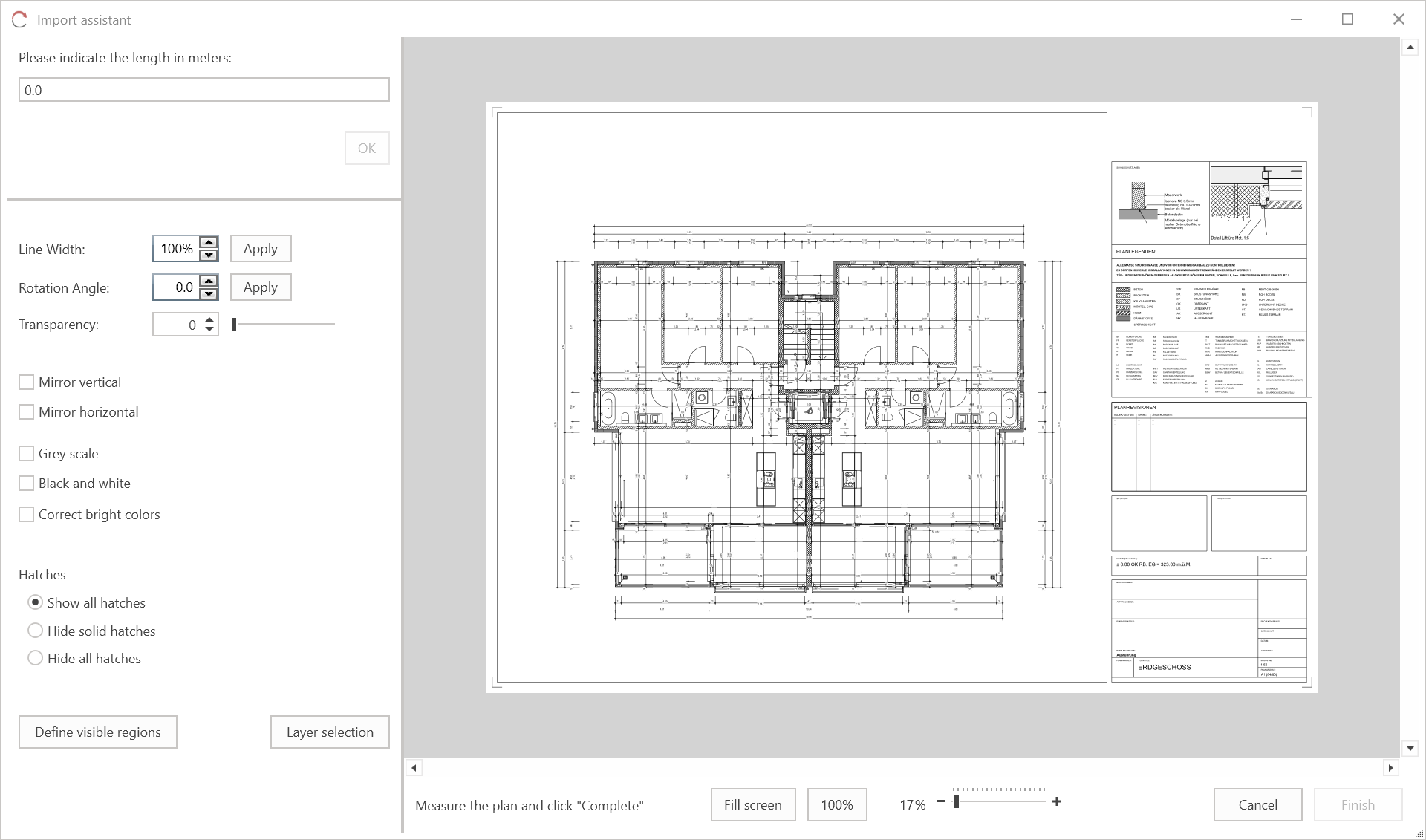
The Import Assistant will open
-
Navigate to a known line (e.g., a dimension line) and draw the reference line arrow (start ←→ end) with two clicks using the left mouse button.
-
Enter the value for the length of the reference line in meters in the input field in the upper left corner.
-
Confirm Confirm your entry by clicking OK or pressing the Enter key.
(More information about the Correction Tool) -
(Optional) Customize the background plan to your needs using the display options.
-
Click Finish in the bottom right corner to complete the import process.
-
The Import Wizard closes, and the background plan is imported.
¶ Correction Tool
The correction tool within the import wizard ensures that background plans are imported to scale and with the correct dimensions.
The correct scale (for PDF files) and the correct scaling factor (for DWG/DXF files) are calculated based on the input of the reference dimension and the drawn distance. If the calculated value for the scale or scaling factor is not a whole number, the correction tool is automatically activated and displayed.
Important: During import, the scale or scaling factor of the background or floor plan is calculated automatically. For this to be correct, the measured value of the reference distance must always be entered in meters. The user does not directly define the scale but provides the basis for the automatic calculation with their input.
Recommendation: For CAD-generated PDF and DWG/DXF files, we recommend allowing scale correction.
For scanned hand sketches or background plans, we recommend not using the scale correction feature, as such PDF files do not have an accurate scale. It is important with these types of PDFs that the distance for the reference measurement is drawn as precisely as possible.
¶ Import Assistant
The Import Assistant helps you import floor plans in the file formats PDF, DWG, and DXF.
It is the central tool for measuring the background plan to ensure the floor plan is imported or transferred to scale.
In addition, the assistant offers various functions that allow you to customize the plan's appearance.
¶ View
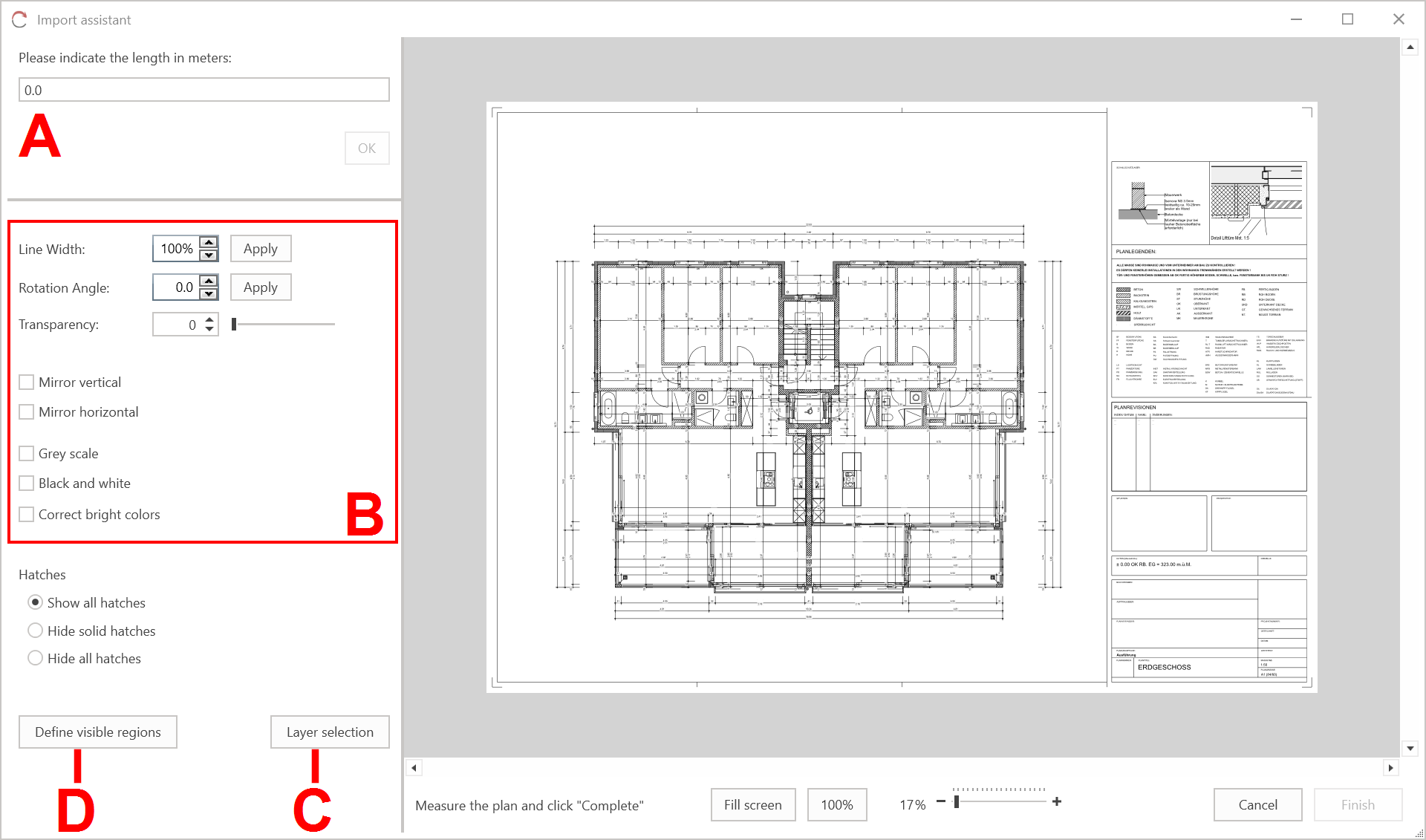
A. Reference Distance Input Field B. Display Options C. Layer Selection D. Visible Areas
In the Reference Distance Input Field (A), the value is always entered in meters to determine the length of the drawn reference distance.
The Display Options (B) allow you to customize the appearance of the background plan. Different options are available depending on the file format (DWG/DXF or PDF). For DWG and DXF files, line weights can also be adjusted and hatching can be hidden.
Layer Selection (C) opens the layer structure contained in the background plan. Individual layers can be shown or hidden to adjust the view before importing.
Using Define Visible Areas (D), you can activate the function to selectively reduce the background plan by drawing specific areas.
Controls in the Import Wizard:
| Left mouse button (click) | = | Draw the dimension arrow / Visible area |
| Right mouse button (hold) | = | Move plan |
| Mouse wheel (hold) | = | Move plan |
| Mouse wheel forward | = | Zoom in |
| Mouse wheel backward | = | Zoom out |
¶ Display Options
Several options are available to simplify working with the background file.
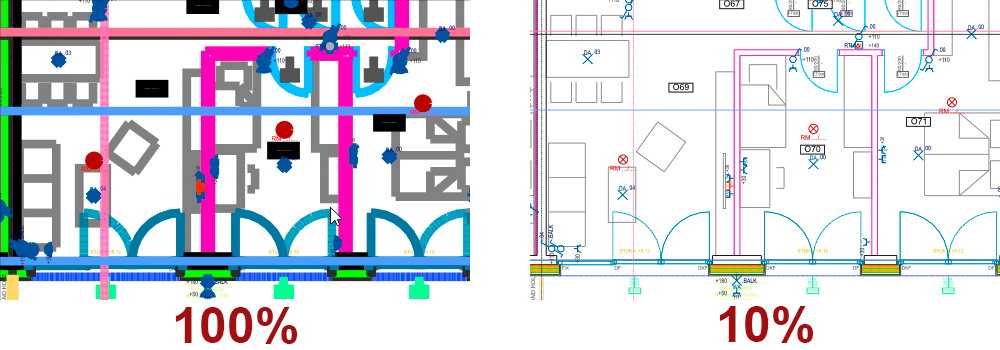
- Line Thickness: Allows you to adjust the line thickness as a percentage. This function is helpful if lines appear too wide or too thin during import. This function exists exclusively for DXF/DWG files.
- Rotation Angle: - Allows you to rotate the background/floor plan. Positive and negative values are possible.
Background/floor plans can only be rotated in the Import Wizard. Rotating the floor plan is no longer possible after import.
-
Transparency: Allows the background/floor plan to be displayed transparently.
-
Flip Vertically/Horizontally: Allows the background/floor plan to be flipped around the vertical/horizontal axis.
-
Grayscale: Allows the background/floor plan to be displayed/colored in grayscale.
-
Black and White: Allows the background/floor plan to be displayed/colored in black and white.
-
Correct Light Colors: – This function only works in conjunction with grayscale. It corrects light colors (e.g., yellow) to improve visibility after coloring in grayscale.
-
Hatches: Allows the quick hiding of hatches. This function exists exclusively for DXF/DWG files.
The following options are available:
-
Show all hatches
-
Hide filled hatches
-
Hide all hatches
-
Define Visible Areas: – Allows you to draw areas to selectively reduce the background plan.

-
Layer Selection: Allows you to view the layer structure of the DWG, DXF, or PDF file. The layer structure appears in the right half of the Import Wizard. Layers can be shown or hidden using the checkboxes.
An additional feature is layer detection. Hovering the mouse cursor briefly over an object in the background plan view will display a pop-up with the layer information, allowing you to hide the layer directly. This layer detection works exclusively in the Import Wizard and with DXF/DWG files.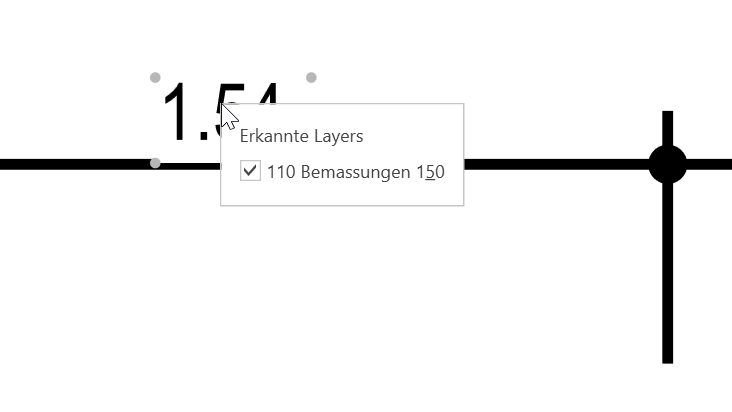
The Back button ends the function, and you can continue with the import process.