The program settings are divided into various topics, such as General, Plan, Schema/Circuit Diagram, Underfloor Heating, and Steiger.
The respective topics are displayed in tabs, each offering a variety of setting options.
The settings are applied immediately, but are not definitively saved until the RED CAD app is properly closed. If the program crashes after making changes, the new settings will be reset.
¶ General
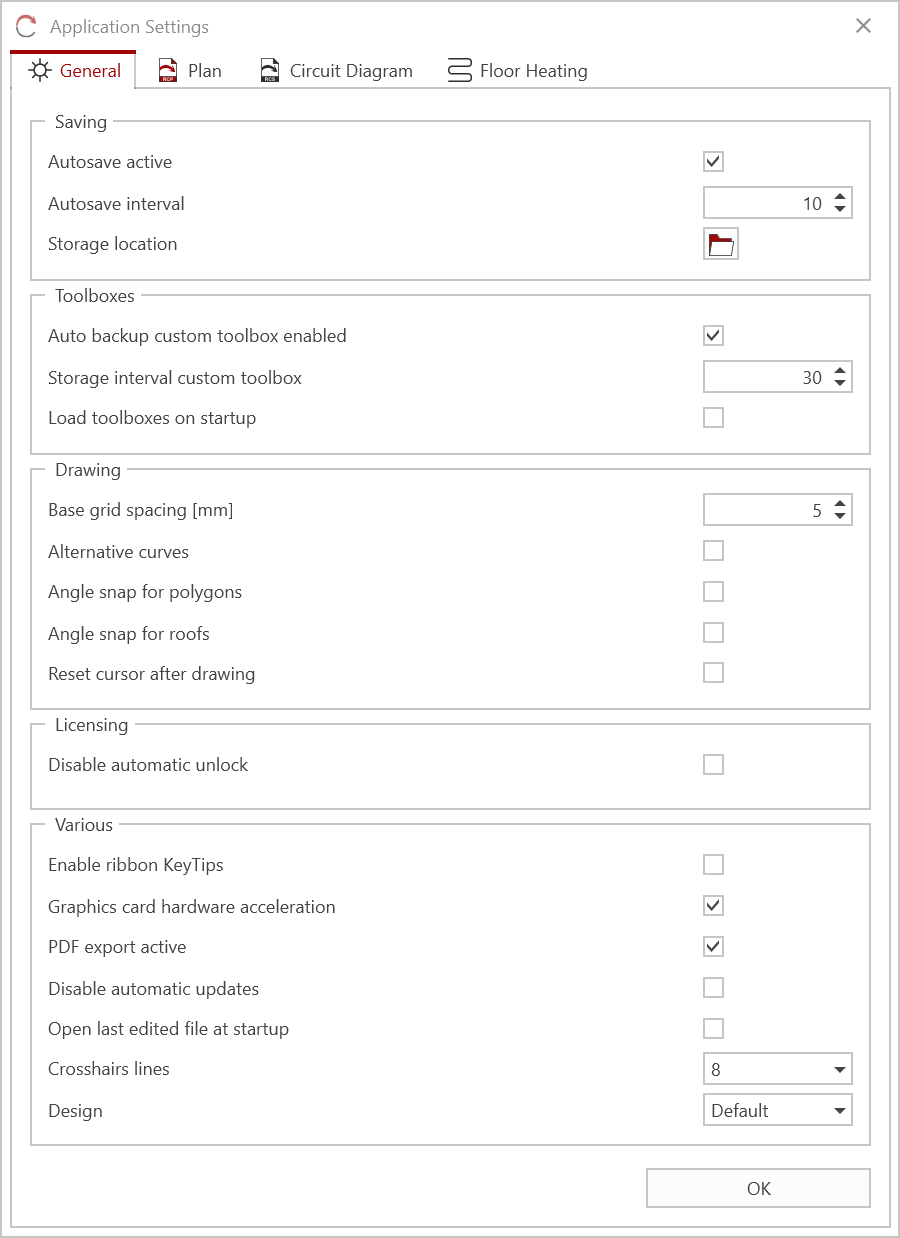
¶ Saving
-
Autosave enabled: Autosave is enabled by default. To disable autosave, uncheck the box.
-
Save interval: Defines the time interval at which the autosave process is performed. Time specified in minutes.
-
Save location: Defines the default save location for all new files. This folder is called by default when new files are saved. Click the folder icon to define a default save location. No folder is defined by default.
¶ Toolboxes
-
Auto-save custom toolbox enabled: By default, the custom toolbox is saved. To disable auto-save, uncheck the box.
-
Save custom toolbox interval: Defines the time interval for the auto-save process. Time specified in minutes.
-
Load toolboxes on startup: If enabled, the most recently opened toolboxes will be automatically opened the next time the program is started. This can delay startup. Disabled by default.
¶ Drawing
-
Grid Distance [mm]: Defines the distance of the grid that exists on a drawing area in millimeters. This distance is traveled when drawing, moving, etc., objects with the grid disabled. The default value is 5.
-
Alternative Curve Shape: If enabled, changes the way curves are drawn. Disabled by default.
-
Angle Snap for Polygon: If enabled, the 45° angle snap is enabled when drawing a polygon. Disabled by default.
-
Angle Snap for Roof: If enabled, the 45° angle snap is enabled when drawing a roof (Arthur Flury fall protection). Disabled by default.
-
Reset Mouse Pointer After Drawing: If enabled, the mouse pointer is reset when completing an element (e.g., line, pipe, etc.) or after placing a symbol. Disabled by default.
¶ Licensing
- Automatic activation: If enabled, the license will not be automatically activated upon shutdown. Only when using a Flex license and should generally only be activated temporarily. Disabled by default.
¶ Miscellaneous
-
Enable hotkeys: Enables menu control via the Alt key. Disabled by default.
-
Graphics card hardware acceleration: Allows the graphics card to be loaded, especially with dedicated graphics cards. May cause performance issues on older systems/terminal servers. To disable, uncheck the checkbox.
-
PDF output enabled: Direct PDF output is enabled by default, meaning a PDF file is always created when printing. If disabled, you have the option to control the printers installed on the system.
-
Disable automatic updates: By default, the program automatically checks for software updates at startup. To disable automatic checks at startup, check the checkbox.
-
Open last edited file at startup: If enabled, the last edited file will be automatically opened at startup. May delay startup. Disabled by default.
-
Crosshair lines: Defines the number of lines used to display the crosshair (alternative to the mouse pointer). The default value is 8.
-
Design: Defines the color scheme (layout) of the RED CAD app. The default is "Standard."
¶ Plan
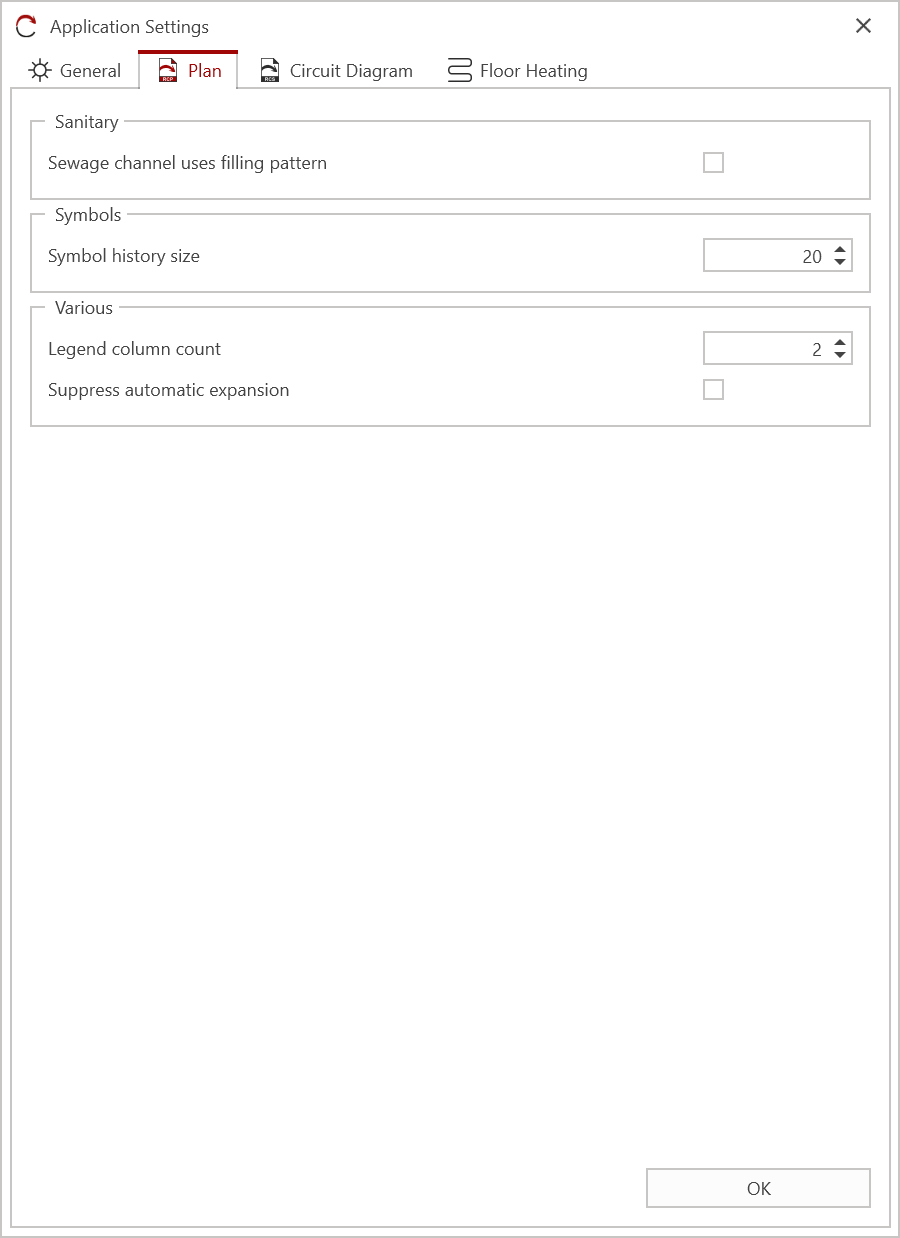
¶ Sanitary
- Sewer adopts fill pattern: If enabled, the fill pattern defined in the preferences will be applied to the sewer when drawing. Disabled by default.
¶ Miscellaneous
-
Number of columns in legend: Defines the number of columns the symbol legend should have by default. The default value is 2.
-
Suppress automatic selection: If enabled, the automatic selection of symbols within the Scenario Manager is suppressed, i.e., the selected symbol will not be highlighted for the user in the Scenario Manager. Disabled by default.
¶ Schematic/Circuit Diagram
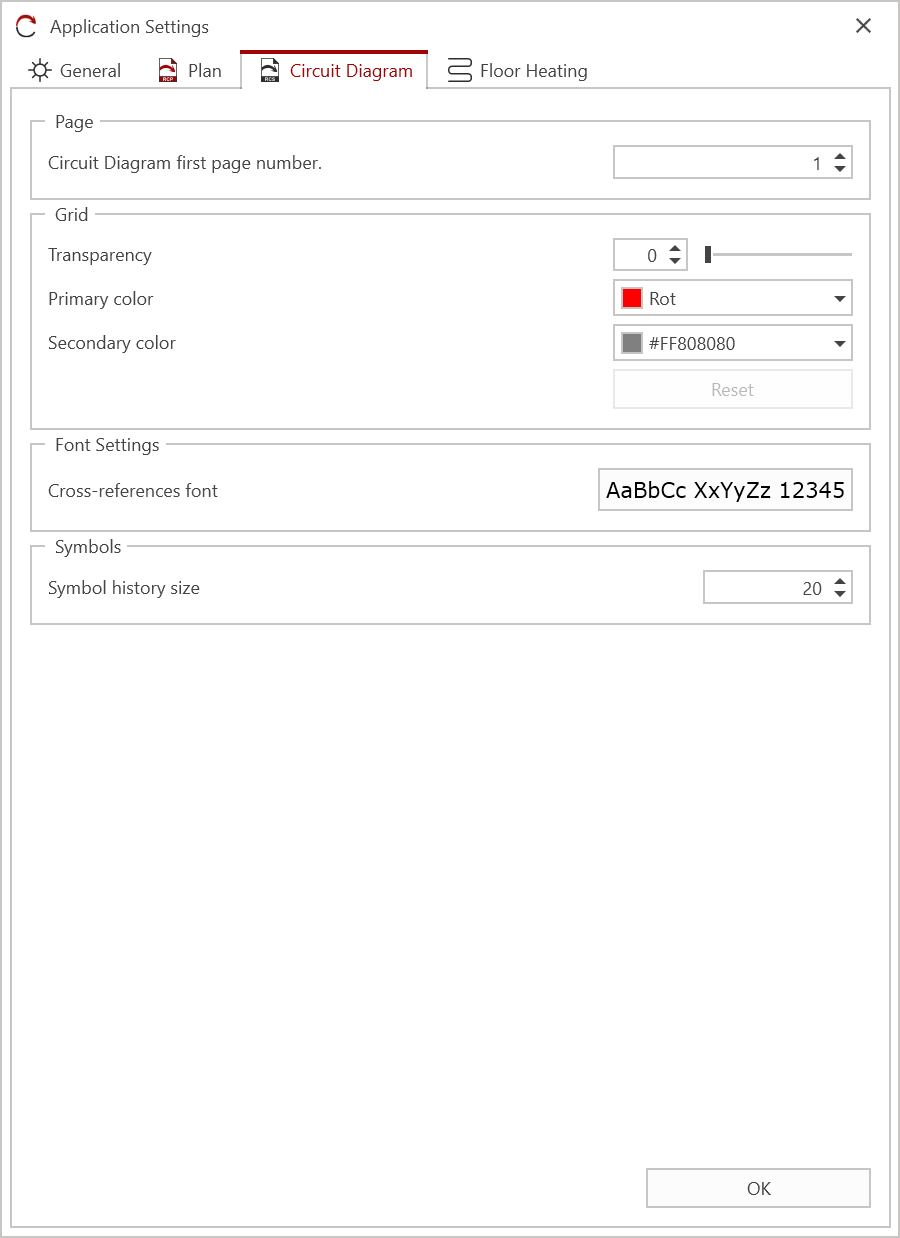
¶ Page
- Schema 1. Page Number: Defines the page number that the first page of a schematic/circuit diagram begins with. The default value is 1.
¶ Grid
The following settings affect the guide lines displayed in a schematic/circuit diagram document.
-Transparency: Defines the transparency of the guidelines in percent. Visible (0%) - Invisible (100%)
-
Primary Color: Defines the primary color of the guidelines. The default color is "Red".
-
Secondary Color: Defines the secondary color of the guidelines. The default color is "#FF808080".
¶ Font Settings
The following font setting affects only the display of the font in cross-references.
- Cross-Reference Font: Defines the display of the font, such as font size, font type, etc., in cross-references. Click on the "AaBbCc.." selection field to display the settings.
¶ Floor heating
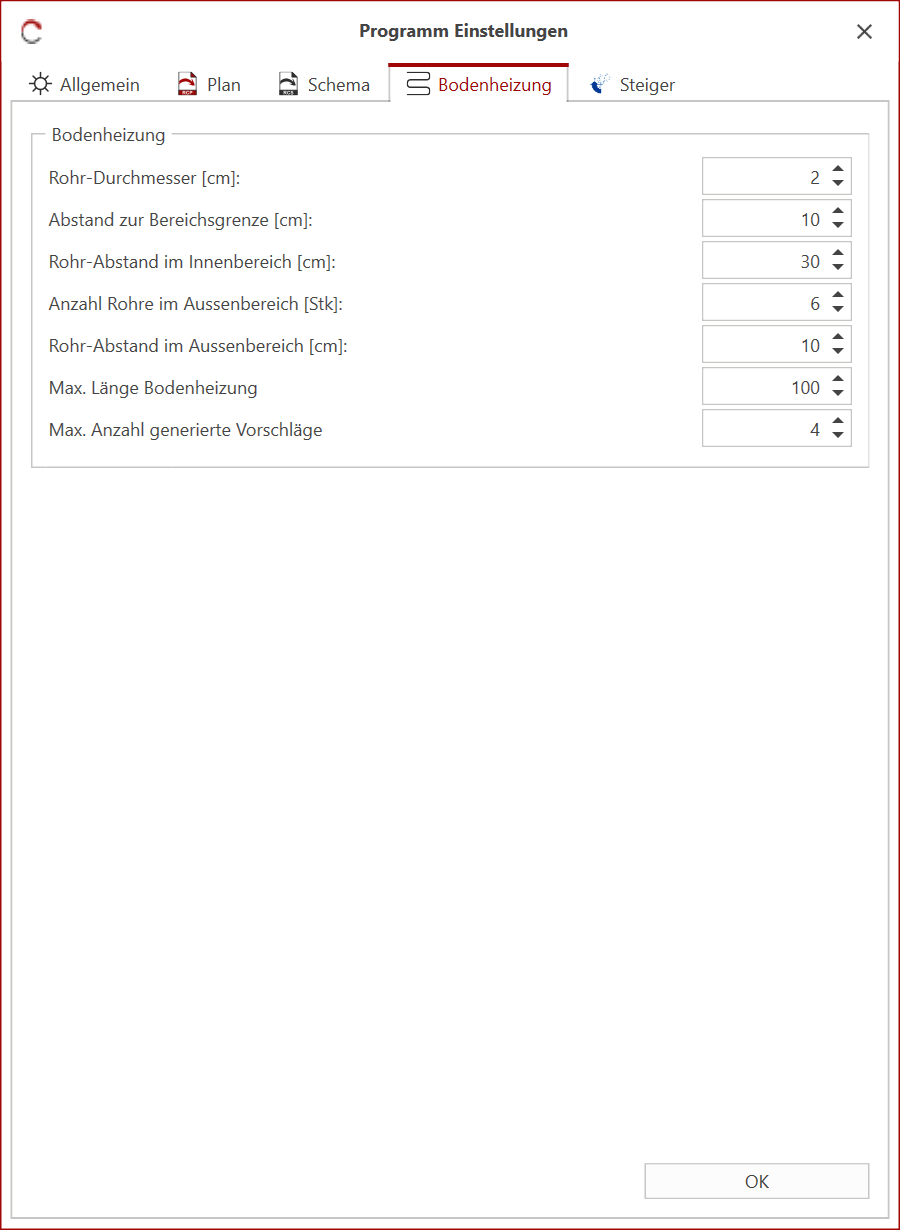
¶ Floor heating
The following settings are used as default values when creating floor heating systems. The settings can be changed and adjusted at any time in the Floor Heating Wizard.
- Pipe diameter [cm]: Defines the diameter used for the floor heating pipes in centimeters. The default value is 2.
- Distance to area boundary [cm]: Defines the distance of the pipes from the drawn area boundary in centimeters. The default value is 10.
- Interior pipe spacing [cm]: Defines the distance between pipes in the interior in centimeters. The default value is 30.
- Number of pipes in the outdoor area [cm]: Defines how many pipes (loops) are drawn for the defined outdoor area. The default value is 6.
- Pipe spacing in the outdoor area [cm]: Defines the distance between pipes in the outdoor area in centimeters. The default value is 10.
- Max. length of underfloor heating: Defines the maximum length of an underfloor heating system in a heating area. The default value is 100.
- Max. number of generated suggestions: Defines how many layout suggestions are generated in the background. Increasing the value may increase the generation of the layout suggestions. The default value is 4.
¶ Steiger
This tab is only available if the Steiger license attribute is included in the license.
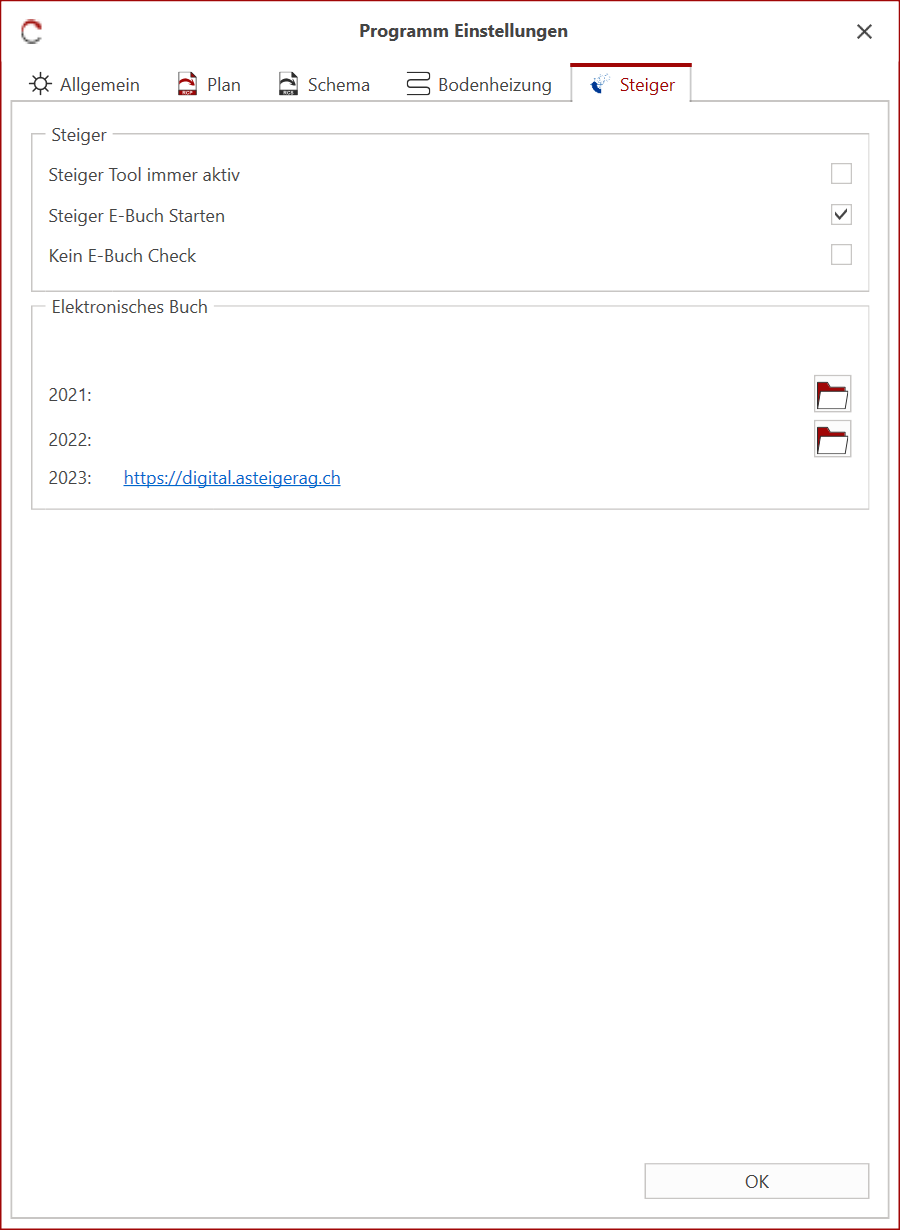
¶ Steiger
-
Steiger Tool Always Active: If enabled, the clipboard is permanently checked for Steiger elements. Disabled by default.
-
Start Steiger E-Book: Defines whether the RED CAD APP can automatically launch the Steiger electronic book when it is closed. Enabled by default.
-
No E-Book Check: If enabled, the Windows Registry is not checked to see if a Steiger electronic book is installed. Disabled by default.