¶ General
In a Schematic/Circuit Diagram document, only the created pages are displayed, thus serving as page navigation. The label/content in brackets, which is displayed per page, is created using the Attachment text field in the plan header.
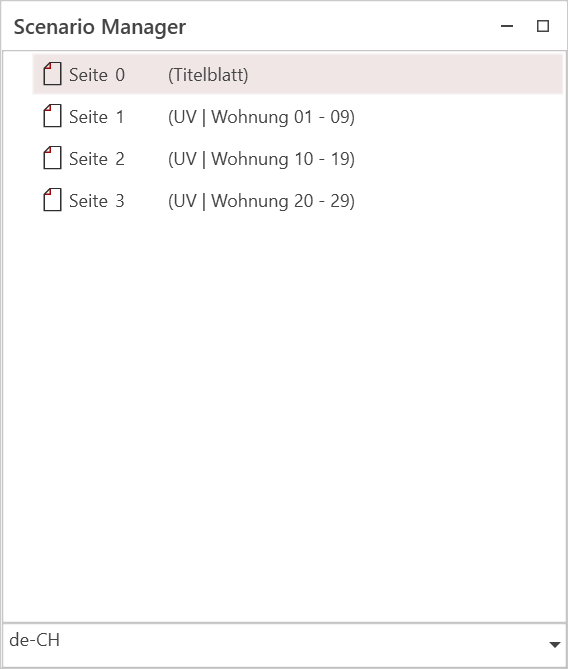
The following elements/objects may appear in the Scenario Manager:
 |
Schematic/Circuit Diagram Page: Single page in a schematic/circuit diagram document. In addition to the page number, additional information about the page content can be displayed. TThe label/content in brackets, which is displayed on each page, is created using the Attachment text field in the plan header. If the with frame layout has been selected for the diagram/circuit diagram, the page content information can be entered by double-clicking next to the page number. |
 |
Layer: Background plan layer. Only available if a schematic/circuit diagram was imported as a background. |
Control functions that have elements/objects:
 |
Show/Hide: Layers of background plans (imported schematics/circuit diagrams) can be shown or hidden using this control. |
 |
Lock/Unlock Objects, layers, scenarios, etc. can be locked and unlocked using this control. Locking objects prevents accidental changes. To make a change, the object must be unlocked again. |
¶ Functions
¶ Adding New Pages
New pages can be added in several ways.
Add a Single Page:
- Open the Scenario Manager
- Right-click on an empty space in the Scenario Manager
- Select New Page
- A new page will be added
Alternatively: You can add new pages by clicking the New Page button in the menu on the Schema tab.
Add a Page Before or After an Existing Page:
- Open the Scenario Manager
- Right-click on the outgoing page
- Select New Page Before or New Page After
- A new page will be added
¶ Duplicating Pages
Duplicate any page:
- Open the Scenario Manager
- Right-click the page you want to duplicate
- Select Duplicate Page
- The page will be added below
¶ Deleting Pages
- Open the Scenario Manager
- Right-click the desired page
- Select Delete Page
- The page will be deleted
¶ Adjusting Page Numbers
Page numbers can be adjusted in two different ways.
If the page number is changed on a page, it will not be renumbered automatically. All pages must then be adjusted manually. However, the page sorting is done automatically.
Adjust page number by right-clicking
- Open the Scenario Manager
- Right-click the desired page
- Select Adjust page number → The page number will now be displayed in a text field
- Enter the desired page number
- Confirm with the Enter key
- The page number will be applied and re-sorted
Adjust page number by double-clicking
- Open the Scenario Manager
- Double-click the desired page number → The page number will now be displayed in a text field
- Enter the desired page number
- Confirm with the Enter key
- The page number will be applied and re-sorted